PlotMyGarden 2.0 — Garden Creator, Autopilot, and everything new since June
Our last big feature update was on June 14. A lot has grown since then.
Some improvements arrived quietly over the summer. Others needed months of work together: a garden creator that turns your choices into an editable layout, an Autopilot that helps you decide what needs attention today, and a plan that stays useful after the first seeds go into the ground.
PlotMyGarden 2.0.0 brings that work together. This article covers everything added since our v1.9.5 feature update, including features that have already arrived in smaller updates. It is a long one, because there is much more here than a new button on the dashboard.
The biggest additions are:
- Garden Creator: turn your available space, location, growing conditions, and favourite crops into a garden you can actually edit and grow.
- A living garden plan: keep the original proposal, review changes with Sage, adjust real plantings, and compare the plan with your season.
- Garden Autopilot: a useful daily overview, grouped care actions, a weekly brief, and timely growing advice across your gardens.
- Real containers and richer planting: pots, raised beds, greenhouses, dense crop patches, and adjustable tree canopies.
- Your actual seeds: separate varieties and packets, reviewed photo scanning, private packet photos, and stock that can exist before a garden does.
- Better growing decisions: clearer climate sources, frost estimates, planting methods, succession choices, and harvest timing.
- More to explore: 1,045 plant guides, 56 templates, renewed plant imagery, expanded guides, and a more helpful start on desktop and mobile.
Here is what each of those changes means when you sit down to plan, sow, or check on your garden.
Garden Creator: start with what you want to grow
An empty plot can be exciting. It can also leave you wondering how many plants to choose, where to put the beds, and whether everything will fit.
The new Garden Creator gives Pro gardeners a guided way through those decisions. Start with your growing space and location, then choose the crops you would like to harvest. Your experience, household size, goals, and growing year help shape the proposal, and you can revisit those choices without throwing away your crop collection.
You can describe a usable area of your garden and let the creator propose growing spaces and access paths. A balcony or terrace is treated as a hard surface that needs containers. If you already have measured beds or pots, you can enter those instead and work within the space you really have.
The growing conditions are part of the conversation:
- How much sunlight does the space receive?
- Are you growing in the ground, raised beds, or containers?
- What soil depth is available where roots have a physical limit?
- Do the selected crops need support?
- Which crops suit the known climate and conditions?
Soil depth has a concrete meaning here. In a raised bed or pot, it describes the growing depth you have measured. For a ground bed, it is an optional constraint when rock or a solid base limits the soil below it. A crop with a known root-depth requirement should not quietly be placed in a container that is too shallow.
You can choose crops from suggestions, search the catalogue, or use a suitable template as a starting collection. Your selected crops and quantities stay visible as you move between those choices. Change the location or sunlight and the collection stays yours; the recommendations and warnings update around it.
Amounts that fit the crop
A single fruit tree and a single radish do not play the same role in a household harvest. The creator uses the available crop data and growing role when proposing quantities, rather than treating every species as interchangeable. You can also set the plant amount for each chosen crop yourself.
Where included, companion plants become real placements alongside the main crops. The proposal accounts for known compatibility and spacing, rather than adding companion names to a decorative list.
You receive a layout, crop amounts, harvest estimates, and a seasonal schedule. If the selection does not fit, a crop is unsuitable for the known conditions, or the planner reaches its own working limits, the result explains that. A large garden is not rejected simply because it is larger than an arbitrary maximum plot size; the generated proposal still has practical limits on how much it can lay out in one pass.
See the real proposal before creating the garden
The preview uses the same garden canvas as the editor. Pan and zoom to inspect the beds, containers, paths, and plant placements before you save. The plants you see are the plants that become part of your garden.
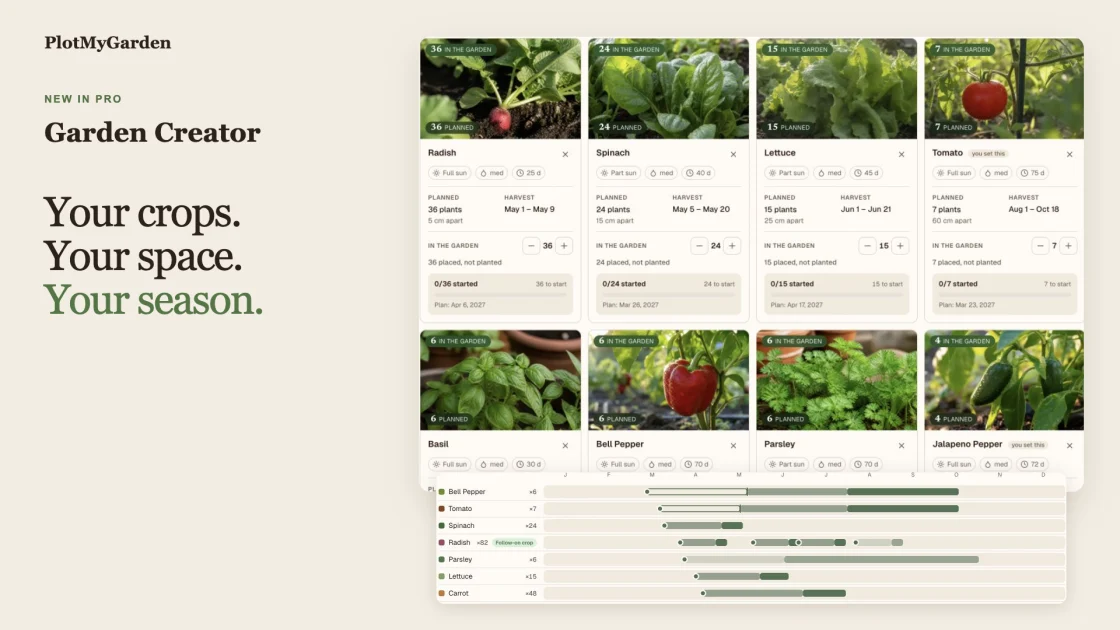
Saving creates a private garden in the normal editor. You can then use the usual placement tools, properties, Plan and Grow modes, and ongoing saving. The creator gives you a starting plan that belongs to you and remains editable.
Harvest figures are estimates. Weather, variety, soil, pests, and the care a crop receives can change the result. Known assumptions and missing information are shown so you can make a decision with the information available.
Sage reviews your plan before you commit to it
Sage now has a specific job inside Garden Creator: reviewing the proposed plan against your choices and growing conditions.
Ask for a review and you can read the reasoning, consider suggested adjustments, and decide which to apply or dismiss. Changing important inputs, such as measured soil depth, invalidates an outdated review so yesterday's advice is not presented as a review of today's proposal.
Your decisions travel with the garden when you save. The answers you gave, the computed proposal, and Sage's review remain available as the record of how this garden started.
The saved layout is still produced by the planner's placement and validation rules. Sage helps you review the choices; a confident sentence alone does not make a plant fit in a bed or change the soil depth you entered.
Your garden plan stays with you through the season
A plan should help after planting day. Generated gardens now have a dedicated plan view in the editor, available on desktop and phone.
It brings together the crop cards, growing spaces, seasonal work, the original proposal, and later revisions. You can move from a crop in the plan to its corresponding planting on the plot, then return to the overview.
Adjust the plants that are actually in your garden
The quantity controls on a plan card change real plantings. Add another plant and the editor looks for a valid placement. Remove one and the live garden changes accordingly. If there is no usable space, the plan tells you and offers a next step instead of pretending the adjustment succeeded.
Plants added directly in the editor also appear in the plan. You can include them in a later revision, so the plan does not become disconnected from work done on the canvas.
Keep the original and understand later changes
The first proposal remains your original reference. Later crop changes are stored as revisions, with a history you can review. Small quantity adjustments can refine a recent revision together, making the history readable rather than creating an entry for every button press.
You can review a saved version's crop targets and apply them to the current plot. Before removals happen, the editor previews what will change and asks you to confirm. The original record stays available even as the current garden evolves.
Cards distinguish plants that are planned, growing, or harvested using their actual planting dates and recorded activity. Space use refers to the whole saved site when its dimensions are known; older gardens without those dimensions use an explicitly labelled bed-area figure.
The original harvest estimate remains a snapshot of the generated proposal. Live plant counts, recorded dates, and progress are shown separately. An edited quantity is not silently presented as a newly verified yield forecast.
Ask Sage about this plan
Opening Sage from the plan starts a focused conversation about that garden and its plan. Suggested amendments appear as proposals you can inspect before applying. You can ask why a crop was chosen, discuss changing an amount, or review how the season differs from the original idea without reopening an unrelated conversation.
Garden Autopilot: what matters today, and what is coming next
The dashboard now brings your growing work together in Garden Autopilot, a Pro feature built around the gardens and plantings you actually have.
It combines a daily overview with a weekly brief. Urgent advice gets attention when it matters. Routine work is grouped into useful actions. Planning suggestions have their own place, and a quiet day can simply be a quiet day.
Autopilot can surface:
- Watering work, when you have enabled watering reminders.
- Cold and heat risks for relevant plantings.
- Feeding and transplanting work.
- Crops approaching or reaching a picking window.
- Growth stages that would benefit from your confirmation.
- Sowing opportunities, closing windows, indoor starts, and possible successors.
- Empty growing space that could be put to use.
Advice is tied to the plant, its stage, growing location, recorded history, local dates, and the weather information available. A pot indoors, a bed under cover, and an outdoor crop should not receive identical rain or frost advice merely because they are the same species.
One useful action instead of a long checklist
You can record watering or feeding for a relevant group, confirm a stage, acknowledge advice, or open a harvest log from the overview. These actions update the actual garden records. The grouping follows the work and growing context, so you do not have to tick the same watering action for every individual plant.
Advice also follows the identity of the planting. Replacing or reseeding a crop starts a new growing record; completing an older suggestion should not accidentally mark work done for the replacement.
Across multiple gardens, the overview keeps the garden context attached to the plants and actions. Crop pictures, counts, dates, and links help you see what an action refers to before using it.
Autopilot provides guidance and records what you tell it you have done. It does not physically water the garden or turn a predicted growth stage into an observation you never made.
The week ahead, and email when you want it
Open the weekly view for a broader look at what is coming. Eligible Pro gardeners can also receive a weekly brief and relevant frost or heat emails when the corresponding email and reminder preferences are enabled.
The overview respects your reminder settings. Weather interruptions have clearer recovery and stale-data states, and forecast warnings carry the dates they refer to. You can see whether a warning is about tonight or a later day instead of guessing from its position in a forecast row.
Pots, beds, and greenhouses are real growing places
Containers now have a real relationship with what is planted inside them.
The element catalogue includes a range of standard pot sizes, raised beds, cold frames, greenhouses, and hydroponic containers. Put a plant into a valid growing container and it becomes part of that container. A pot or bed can itself belong inside a greenhouse where that type of nesting is supported.
This changes everyday editing:
- Move a pot or bed and its contents move with it. You can reorganise the space without rebuilding the planting one item at a time.
- Duplicate a planted container with its contents. The new copy has its own plant identities and container relationships.
- Resize or rotate with the planting in mind. The editor validates what will still fit, and moving a child out updates its membership.
- See what deletion means before confirming it. Removing a container names the plants and nested growing spaces that would go with it.
Container membership also informs growing location. Moving plants into or out of a greenhouse affects the context used for growing advice. Pots and hydroponic plantings keep an explicit indoor choice where applicable, so a deliberate setting is not lost during ordinary editing.
The same relationships are preserved through saving, duplication, imports, and Sage's garden operations. Desktop and touch controls use the same core placement rules.
A plot that is easier to read
There are now switchable plant-tile styles with recognisable species imagery, clearer round-pot rendering, and improved container rims and hardscape elements. Plants remain readable inside their growing space.
Dense small crops can be represented as planted patches rather than hundreds of indistinguishable single tiles. Patch quantity follows the crop's spacing and the area being represented. Trees have clearer size controls that separate the planting footprint from the visible canopy, including more reliable bounds when rotated.
Pan, zoom, fit, touch selection, and navigation have also received attention, including fitting larger gardens on a phone and reducing unnecessary canvas work on high-density screens.
Seed packets and varieties finally keep their own identity
Two tomato packets may contain the same species but have different varieties, maturity times, brands, and seed counts. Your inventory can now keep those differences.
Save separate seed lots and custom varieties instead of merging everything into one generic species total. You can record the packet's variety, brand, year, germination information, maturity duration, spacing, sowing depth, indoor-start guidance, and notes where available.
Those details are not trapped in a note. Relevant variety timing can travel into planting and succession decisions, and using a selected packet preserves which lot the planting came from. Quantity adjustments and saved-seed batches keep their own stock history.
You can also keep account-owned stock without assigning it to a garden first. Buying seeds in winter should not require inventing a bed in order to remember what is in the cupboard. Assign or use that stock when you are ready, within the gardens your account can access.
Photograph a packet, then review the result
Pro gardeners can scan seed-packet photos through a shared flow used in My Plants, bulk import, and the editor's seed inventory.
The scanner proposes the plant match and packet details it can read. Review and correct the result before saving. Uncertain or missing information stays visible rather than being treated as a fact printed on your packet. Scanning uses your Pro AI allowance; manual entry remains available.
You can retain private packet photos with the lot, including pictures that capture the front and the growing instructions. Upload, removal, failed-save recovery, and photo ownership have been tightened so a packet does not lose its reference image during an ordinary retry.
Bring in a seed list or an existing planting in bulk
The new import hub helps you bring existing stock and plants into PlotMyGarden without entering each item from scratch.
Browse the catalogue or paste a list from your notes or a spreadsheet. Common formats such as a plant name with a quantity or a variety in brackets are recognised. Review the matched species, quantities, varieties, and growing stages in a selection tray before committing.
Seeds can become inventory stock. Existing plants can be recorded with the appropriate stage and assigned to a garden or bed where supported. Placement uses the same space rules as the editor, and the summary explains what was added and what still needs attention.
Partial failures keep a recoverable selection for the work that remains, so a retry does not require starting the whole list again or blindly adding a successful part twice.
Growing advice now asks the right planting question
“Can I sow this?” and “Can I plant out a young plant?” are different questions. So are an indoor seed start and an autumn planting intended to establish through winter.
The planting model now distinguishes direct sowing, starting indoors, planting bulbs, and planting young plants. Garden Guide, the public calendars, inventory advice, and relevant growing actions use that method when evaluating a planting window.
Advice considers the local hemisphere, known frost dates, remaining season, growing location, and the material you actually hold. Seed stock should not offer a young-plant action simply because the species has an establishment window. A depleted packet should not supply an actionable sowing recommendation.
Winter and overwintering crops have more careful treatment. An autumn establishment window does not automatically promise a harvest before that year's frost, and an indoor sowing date does not pretend to be the date a crop was planted into its final position.
Garden Guide and “what comes next here?”
The editor's Garden Guide adds seasonal discovery and companion choices to the plant catalogue. You can find crops relevant to the season, explore a suitable neighbour, and turn a neighbour suggestion into an actual placement choice.
For an existing planting, succession suggestions help you consider what can follow in the same spot. They account for the available space, supported planting method, known timing, growing protection, and crop family. Rotation uses botanical families, so a shop-style category does not accidentally become a rotation rule.
Where a stocked packet is selected, its variety timing is used consistently. In the appropriate growing workflow, choosing a successor can finish the outgoing crop, preserve its history, plant the next one, and update the stock being used.
Harvest timing gives observations their proper weight
The harvest journal and Timeline were already part of the last big release. Since then, the work has focused on making the dates and readiness behind them more trustworthy.
A recorded pick, a readiness confirmation, and an automatic estimate now have clearer roles. Actual observations take priority where appropriate, without making a crop appear harvest-ready forever. A harvest from a previous planting remains history; it does not make a newly seeded replacement mature on day one.
Repeated picks can form a continuous picking episode, while a long gap starts a new one. Drawers, reminders, countdowns, and Timeline tracks share the relevant picking window. Daylight-saving changes should not move a recorded harvest into yesterday on the chart.
For crops whose harvest depends on winter establishment or another unknown part of the growing process, the app can leave an exact prediction open instead of inventing a date. Public calculators also distinguish nursery sowing from planting into the final growing position.
You still have your journal, photos, harvest records, and stage history. The improvement is in how that evidence is used when the app tells you what is happening now or what may happen next.
Location, hardiness, and frost dates are easier to trust
The worldwide hardiness lookup has been rebuilt again since June, with a versioned climate dataset and the native US hardiness-map overlay where applicable. A selected city, a precise garden location, an automatic zone, and a manual zone choice now have clearer meanings in the interface.
You can see the source of a detected zone and keep a manual choice when it better reflects your garden. Changing a location refreshes the climate information that belongs to it, rather than leaving a new city paired with an old zone or stale frost dates.
Hardiness describes winter cold tolerance. Frost dates describe seasonal timing. The interface makes that distinction clearer, and a manual zone override is not presented as a measurement of the garden's frost dates.
Frost estimates expose their provenance and typical or more cautious dates where available. Hemisphere choices are respected in manual sowing tools, and local dates are handled more consistently across forecast cards, sowing advice, and seasonal boundaries.
These are estimates based on the information available, not a promise that a particular courtyard will frost on an exact night. Your location, observations, and deliberate overrides remain important parts of the picture.
A larger template library and 31 new plant guides
The curated template library has grown from 15 to 56 layouts, with English, German, and Spanish content. There are more starting points for different spaces, seasons, interests, and experience levels, with clearer imagery and routes into an editable garden.
Community gardens and the existing “grow from this garden” flow remain part of Discover. The expanded library gives you more choices before you begin arranging your own space.
The plant catalogue now contains 1,045 species and varieties. We added 31 guides in response to plant wishes:
- Vegetables and food crops: Mesclun, Buckwheat, Cucamelon, Pepperoncini, Sunrise Bumblebee Tomato, and Ivuntian Giant Tomato.
- Herbs and fruit: Yellow Mustard, Comfrey, and Coffee.
- Shrubs: Spicebush, New Jersey Tea, Butterfly Bush, Clethra, Azalea, Rose of Sharon, and Photinia.
- Trees and larger woody plants: Albizia and clumping Bamboo.
- Flowers and other ornamentals: Arabian Jasmine, Wisteria, Malope, Phacelia, Nasturtium, Coreopsis, Moss Phlox, Chinese Forget-me-not, Canada Anemone, Wax Flower, Common Milkweed, Goldenrod, and Sedge.
Shrubs now have their own catalogue category, including flowering, evergreen, and deciduous browsing options. They are also represented in pickers, wishlists, and the relevant woody-plant growing rules.
Moringa is now listed as a tree. Older saved references and retired plant links resolve to the current guide, so catalogue cleanup does not mean losing a plant from an existing garden.
Each new guide includes growing information and imagery with English, German, and Spanish presentation. The shared catalogue has also received corrections to companion references, names, categories, and translated content.
Plant guides and public growing tools have been rebuilt
Plant pages now bring the useful decisions closer to the growing information: when to start, how much space a crop needs, what a harvest estimate means, which neighbours may suit it, and how to move from reading into a garden.
The redesigned guides include richer image galleries, growing-stage information, interactive planting and yield tools, companion links, and clearer links to your wishlist or garden. A mini editor on plant pages lets you try a planting arrangement and continue into the fuller planner without discarding that work.
The plant browser and category pages have richer cards and images. The planting guide, companion chart, garden calendar, and hardiness guide have also been rebuilt, including dedicated pages for individual months and hardiness zones. Related guides and plant pages connect more naturally, with language-aware links and clearer social previews.
The catalogue's plant imagery has been renewed, and pest and disease entries now have visual reference images alongside their descriptions, including in the editor where relevant. These are reference illustrations to compare with the written growing information.
Where available, plant guides can also show relevant seed or growing-supply links for the visitor's region. Affiliate links are disclosed, and reading the guide or planning a garden does not require a purchase.
Try the editor, keep your work, and start with a free account
The public site now includes a real guest editor experience. Place plants, explore the catalogue, and try a layout before creating an account. When you choose to save, the signup and welcome flow carry that draft into your account rather than asking you to begin again.
A rebuilt signup experience supports Google sign-in alongside the existing authentication options. Plant-page saves and wishlist hearts also preserve the plant you came for as you create an account.
The homepages, Pro page, growing guides, and Help hub now connect Garden Creator with the care that follows through Autopilot. Localised walkthrough videos use the actual product, with captions and chapter markers, so you can see how a proposal becomes a garden before deciding where to begin.
The welcome flow is more comfortable on phones, with clearer scrolling, controls, location choices, and fewer interruptions. New dashboard guidance helps you choose crops and find your next useful step.
There is an important change to the offer described in our June post: new accounts now start free, without an automatic Pro trial or a required payment step. Choose Pro when it is useful to you. Pro purchases have a seven-day money-back guarantee instead of the former free-trial offer.
More useful things on the free plan
Free gardeners now have a real wishlist for up to ten plants, with save hearts available from the plant pages. Free Sage access is three messages a day; Pro's shared AI allowance is ten a day, including eligible photo and packet-reading requests.
The free plan keeps one accessible garden, the visual editor, the plant guides, and the core starting experience. Existing gardens are retained if an account returns to free; account access rules determine which one remains open.
Garden Creator and Garden Autopilot are Pro features. Pro also keeps the broader growing tools, history, photo workflows, and unlimited gardens described on the Pro page. The offer and current price are shown before checkout, with regional currency support rather than assuming every gardener pays in US dollars.
Help, Sage, and feedback are easier to reach
The new Help hub explains the app's important concepts: getting started, planning versus growing, care work, weather and location, and the difference between free and Pro. It is available across account tiers and reachable from the app's navigation.
Sage is also available from the dashboard, with a garden context, so you can ask a growing question without first navigating into the editor. Garden edits made there follow the normal saving path.
There is a direct feedback and plant-wishes box on the dashboard. Requests reach the administrative suggestions view, giving us a clearer way to follow up on missing plants and rough edges. The public roadmap remains the place to propose and vote on future features.
Garden Creator has its own quiet new-feature notice across the questionnaire, creation, preview, and saved plan. Close it and a small feedback pill stays easy to find, including on a phone. It remembers your choice as you move through the flow.
The notice is there for a practical reason: gardens span different regions, climates, soils, and growing habits. Some combinations will reveal problems we did not catch before release. A report includes the relevant step, language, and available city, country, or climate-zone context to help us investigate. It goes privately to the feedback channel, and a failed submission keeps your text available to try again.
Useful email, on your terms
The Grower's Almanac now has a fuller welcome course and authored seasonal digest editions. Its capture and confirmation flow has been improved, with English, German, and Spanish content and separate seasonal treatment for the two hemispheres. German editions use the Gartenbrief name.
New free accounts also have a dedicated onboarding email sequence with practical guidance, plant imagery, companion examples, and paths back to their garden. These replace the old trial-centred approach.
Email preferences and unsubscribe paths remain part of the experience. Duplicate sends, failed-send recovery, bulk cleanup, confirmation links, and reminder scheduling have received further work. If you are already subscribed, signing up again should explain that clearly instead of restarting the whole welcome course.
Account control, privacy, and a steadier app
Several improvements are less visible until you need them:
- Cookie choices control optional analytics. The consent banner connects your choice to the optional tracking it describes.
- Published gardens expose the layout, not private growing records. Private notes, care logs, packet information, and other lifecycle details are kept out of the public garden representation.
- Account deletion has broader cleanup and a recovery path for an interrupted deletion. Recovery helps finish the deletion process; it does not restore data that has already been erased.
- Private photos and seed lots have stronger ownership checks. Cleanup and retries follow the account and planting records they belong to.
- Checkout and payment recovery are clearer. Regional currency support, payment-failure notices, checkout error messages, and recovery emails have been improved. Existing cancellation, invoice, and data-export controls remain available.
- Gifted Pro periods are supported. When we grant a gardener a gift, the account receives clear entitlement or billing treatment and an explanatory email, without pretending a gift is a new purchase.
The app also carries less unnecessary plant data into the browser. Lighter catalogue loading, smaller public-page output, image and font loading improvements, streaming-chat recovery, tablet work, and a long set of touch fixes make the new features more practical to use.
Behind the scenes, release checks now catch missing database changes before they reach a release, and deployment health checks and rollback handling have been strengthened. The goal is fewer broken pages and less interruption while improvements arrive.
A better workshop behind the garden
For completeness, this update also includes a substantial rebuild of Grove Keeper, our administrative workspace.
It now brings together account and revenue state, traffic and acquisition, lifecycle funnels, plant activity, conversion surfaces, and custom date-range charts. The Messaging hub joins the different email streams with previews and reporting. Support tools include Pro gifting, private feedback, and clearer subscriber management.
There is also an experiment workspace for comparing interface versions, inspecting the actual variations, recording decisions, and following their results. Search and content tools cover indexing, queries, page opportunities, internal links, metadata proposals, and reviewed changes. Bot filtering and more careful event handling help keep those reports grounded in actual use.
These tools are for running and improving PlotMyGarden. They do not add another task to your gardening day, but they help us notice problems, understand feedback, and make the next update more useful.
Pick the next step that suits your garden
If you are starting from an empty space, try Garden Creator with the crops you actually want to eat. If you already have a garden growing, check the dashboard's Autopilot and review its context before recording your next action. If your seeds are still in packets, add those lots or use the import hub before deciding where everything belongs.
For inspiration, explore the 56 templates, the plant library, and the growing guides. Keep the parts of your current garden that work, and change the parts you want to improve.
Thank you for the plant wishes, bug reports, and the very specific details about how you garden. A shallow pot, a different hemisphere, an unusual variety, or a harvest that arrives later than expected can change the right advice. That is why 2.0 keeps more of those details visible and gives you more ways to correct the plan.
Keep telling us what you find through the feedback tools and roadmap. We look forward to seeing what you grow next.
— Vladimir, PlotMyGarden